HaloVPN
Follow these steps
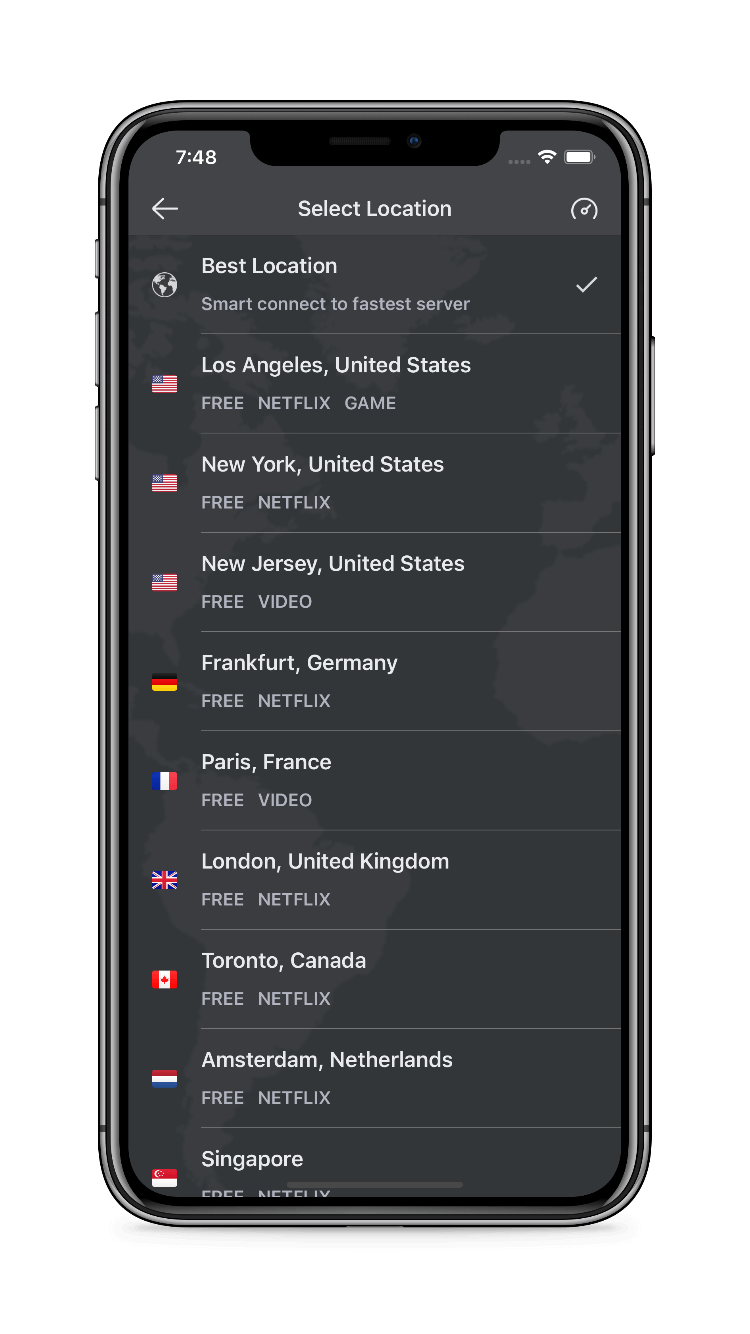
Use Smart Connect or select a location based on your network needs.
- Open the current location list.
- Check whether the desired location needs Pro access.
- Start with Smart Connect if you do not need a particular exit region.
- Try a nearby location when latency matters.
- After changing location, confirm that the connection is active.
- Test the actual service you want to use.
Check the result
The app list is more current than a fixed website country count. Locations can change and a different IP does not change GPS, store country or third-party subscription rights.
When you need support
Include your device platform, app version, network type and the step that failed. Remove personal information from screenshots. Never share passwords, account tokens or recovery codes.