HaloVPN
Follow these steps
Use the official Google Play app and approve Android VPN permission before connecting.
- Open the official Google Play link on the download page and check the package is com.thehot.halovpnpro.
- Install or update the app and complete its first-run prompts.
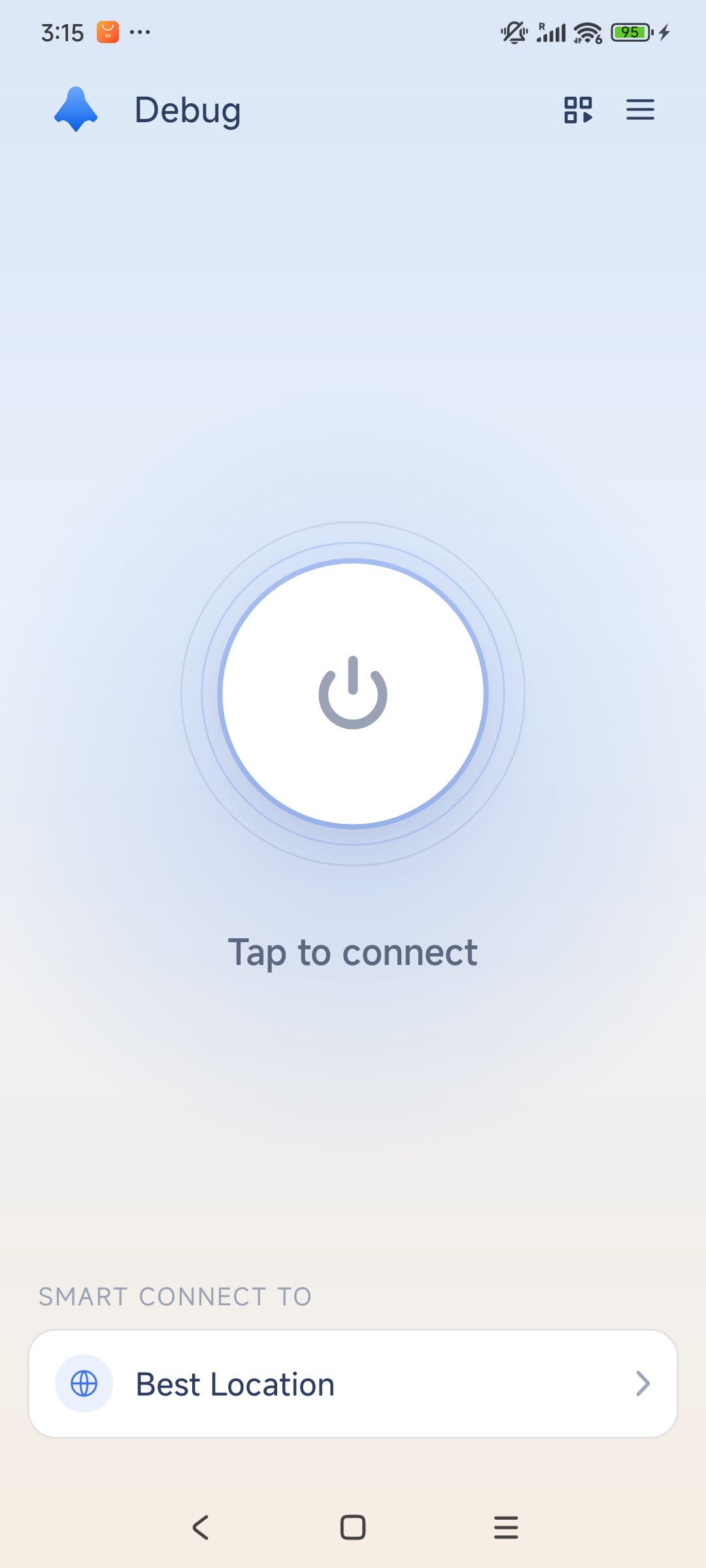
- Tap Connect. Read the Android VPN permission and allow it if you want to proceed.
- Wait for the app to show a connected state, then open a familiar HTTPS website.
- If the site does not load, complete any Wi-Fi sign-in portal and try another location.
Check the result
Android can run only one VPN per user profile. A key icon alone is not proof that every website works. Do not install another VPN to fix a permission prompt.
When you need support
Include your device platform, app version, network type and the step that failed. Remove personal information from screenshots. Never share passwords, account tokens or recovery codes.